
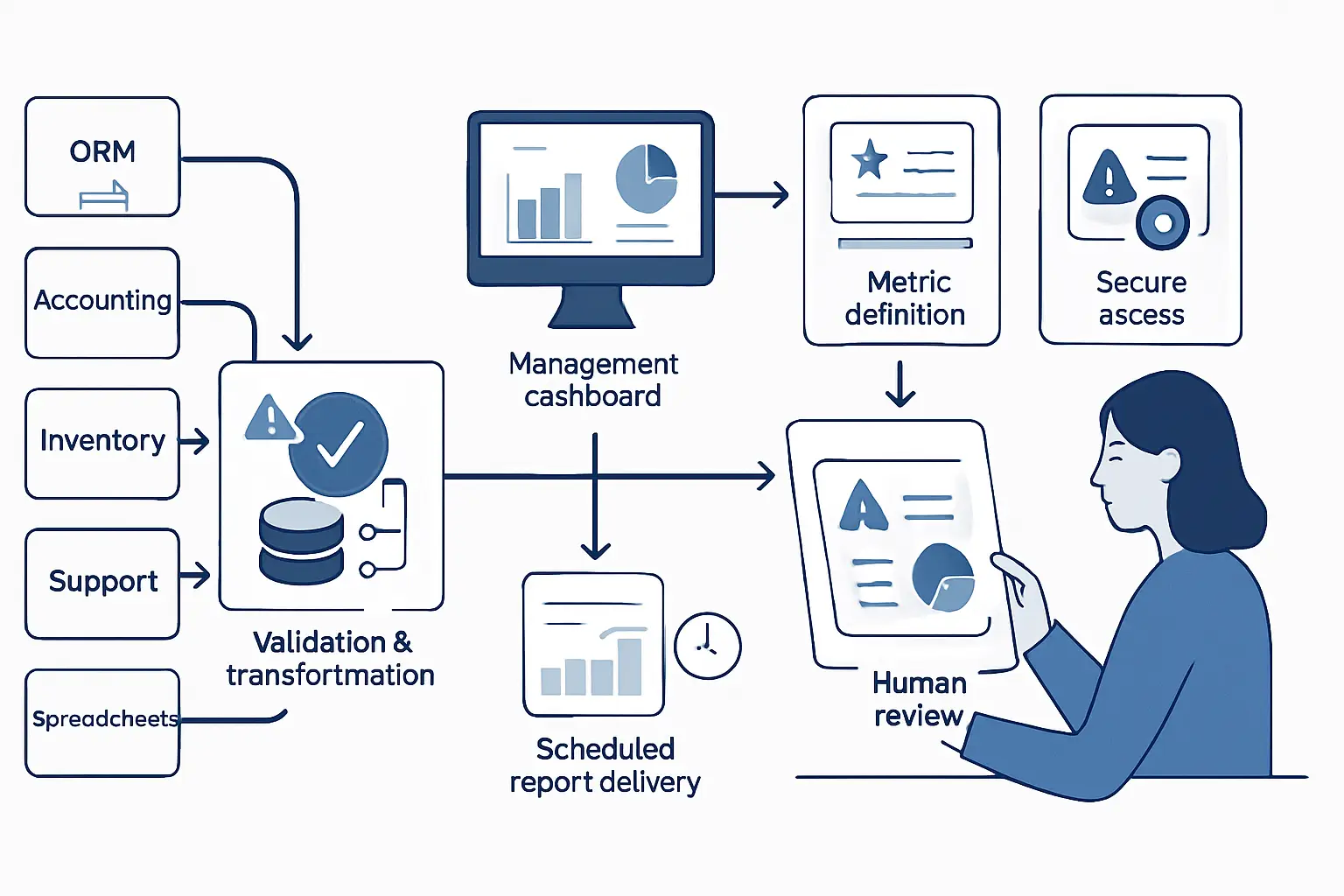
Power Automate reporting automation addresses a costly reporting pattern: people export figures from several systems, reconcile spreadsheet versions, format slides, chase late inputs, and distribute a report that may already be out of date. However, a dependable reporting process does more than refresh a chart. It defines where data comes from, checks whether it is complete, applies approved calculations, protects sensitive detail, and directs exceptions to someone who can investigate them.
With a Power Automate consulting and workflow automation approach, organizations can connect Microsoft 365 data and approved business systems around a controlled reporting cycle. Where source data spans multiple platforms, disciplined API integration automation can also support clearer lineage and more reliable refreshes.
Key Takeaways
- Automate stable reporting first
First, start with recurring reports that have a clear audience, repeatable inputs, agreed definitions, and a regular review cycle.
- Define metrics before visuals
In other words, a dashboard cannot resolve disagreement about revenue, backlog, service level, margin, or forecast logic.
- Validate every data handoff
Importantly, a successful flow run does not prove that the report contains complete, current, or sensible data.
- Keep accountability visible
Therefore, name the metric owner, data owner, exception owner, and person responsible for interpreting material changes.
- Use alerts for action
Meanwhile, scheduled reports support routine oversight, while exception alerts should identify a condition that needs a defined response.
- Treat dashboards as products
Ultimately, maintain reporting assets with ownership, access controls, support routes, change management, and regular usefulness reviews.
Why Power Automate Automated Reporting and Dashboard Automation Reduces Rework
Manual reporting usually involves more coordination than the finished report reveals.
Recurring reporting is rarely a single task. For example, finance may export ledger data, sales may update a forecast, operations may compile activity figures, and a manager may reconcile the differences before the document is formatted and emailed. Consequently, a report can consume skilled time while still arriving too late for the meeting it was meant to support.
Power Automate reporting automation can remove repeatable collection, checking, routing, and distribution work. However, it should not remove accountability. Good automation makes missing inputs, changed calculations, failed refreshes, and unusual values easier to see; it does not silently turn uncertain data into an executive-ready total.
Which Power Automate Reporting Workflows Should a Business Automate First?
Prioritize reports with stable inputs, a known audience, and a recurring decision behind them. In practice, Power Automate reporting automation is most useful where a repeatable handoff can be governed clearly.
Operational Performance Packs
Teams manually combine weekly volume, completion, backlog, and service-level figures from several operational tools.
Consequently, a scheduled flow can check source availability, collect approved values, update a reporting register, and notify owners of missing inputs.
- Less repetitive consolidation
- Consistent reporting periods
- Earlier visibility of blocked work
Finance Management Reporting
Actuals, budgets, forecasts, and variance explanations often move between controlled systems and local spreadsheets.
For example, flows can route controlled submissions, validate required fields, record close-status checkpoints, and distribute approved summaries.
- Clearer reporting provenance
- Fewer manual handoffs
- More time for variance analysis
Sales Pipeline Reviews
Commercial leaders need current pipeline stages, forecast changes, incomplete records, and follow-up commitments.
Similarly, Power Automate can evaluate Dynamics 365 or approved CRM records, flag data-quality gaps, and send owner-specific review reminders.
- Current pipeline visibility
- Better follow-up ownership
- Reduced reliance on trackers
Service Delivery Monitoring
Service managers combine ticketing, project, and customer information to understand unresolved work and capacity pressure.
Therefore, reporting workflows can collect service data, apply agreed thresholds, and create Teams notifications when a condition needs review.
- Faster issue recognition
- Consistent service measures
- Traceable escalation
Compliance Status Reporting
Control owners maintain evidence and action status across repositories, emails, and spreadsheets.
In addition, flows can request status updates, check overdue actions, retain submission history, and notify accountable owners of gaps.
- Visible outstanding actions
- Better review preparation
- Improved traceability
Project Portfolio Summaries
Programme leaders need comparable views of milestones, risks, dependencies, and resource concerns across projects.
Meanwhile, scheduled collection and validation can consolidate agreed project fields while keeping supporting detail available to authorized reviewers.
- Less presentation preparation
- Comparable status updates
- Clearer escalation routes
Start With Decisions for Power Automate Reporting Workflows
Every metric should help a named audience decide, investigate, prioritize, or approve something. Therefore, define the intended action before selecting a visual, and use Power Automate reporting automation to support that decision path.
Questions to Answer
Before building anything, identify the decision the report supports and the consequences of a late, incomplete, or misleading number.
- Who uses this information?
- What action may follow?
- What reporting cadence is needed?
- What detail is required to investigate?
Ownership to Name
In addition, separate responsibility for the source data, metric definition, workflow support, dashboard ownership, and business action.
- Data owner
- Metric owner
- Exception owner
- Report or dashboard product owner
Map the Data Journey for Power Automate Reporting Workflows
A metric is only as dependable as the journey from operational event to reporting output.
For each important measure, document the originating system, record or field, update timing, extraction method, transformation rules, owner, and destination. Additionally, record whether the value can change after a period close because of corrections, late records, or status updates. These details set realistic expectations for refresh timing and historical comparisons.
Separate operational source data from reporting data. For example, Dynamics 365 may create sales records, SharePoint may hold a controlled operational register, and a reporting dataset may apply approved transformations to selected fields. This distinction gives Power Automate reporting automation a clearer control boundary and helps prevent people from treating a dashboard as a place to edit underlying business facts.
Reliability depends on controls at each stage, not solely on dashboard appearance. As a result, the reporting journey should make ownership and exceptions visible.
- Operational Sources Finance, CRM, service, project, spreadsheet, and custom application records create the underlying events and values.
- Collection and Validation Then, Power Automate retrieves approved inputs and checks expected dates, fields, formats, duplicates, and source availability.
- Reporting Model Next, controlled transformations and calculations create a consistent reporting dataset with documented definitions.
- Dashboards and Reports Consequently, role-appropriate views present trends, reporting-period context, summaries, and authorized drill-down detail.
- Alerts and Review Finally, failed refreshes, missing data, and threshold conditions route to named people or monitored operational queues.
Build a Data Model for Power Automate Reporting Workflows
A well-designed reporting model makes calculations understandable and changes traceable. In particular, it gives Power Automate reporting automation a controlled foundation.
Business Definition
First, describe what the metric means, the decision it supports, and the owner who approves its interpretation.
- Included population
- Exclusions
- Reporting period
Calculation Logic
Then, document the source fields, transformations, formula, rounding approach, and treatment of late or corrected records.
- Source fields
- Transformation rules
- Version history
Data Quality Rules
Finally, specify what counts as a missing, duplicate, invalid, incomplete, or unusually changed value before publication.
- Completeness checks
- Range checks
- Exception route
Power Automate Reporting Automation Design
Use Power Automate reporting automation to coordinate reporting operations around governed data and clear review paths.
Power Automate is particularly useful for the process around reporting: starting a collection cycle, checking submissions, routing approvals, updating a SharePoint list or Dataverse table, creating a document, sending a Teams notification, and retaining an audit trail. In contrast, a business intelligence model or approved reporting dataset should normally remain responsible for complex aggregation and interactive visualization.
A practical design often uses child flows for reusable actions such as validation, reminder delivery, or error logging. Variables can track reporting-period status, while conditions determine whether a flow can publish, must request correction, or should escalate an exception. Therefore, the automation reflects the organization’s reporting controls rather than merely moving files faster.
Choose the Right Flow Type for Power Automate Reporting Workflows
Reporting automation commonly combines more than one flow pattern. Specifically, choose a trigger that matches the reporting event and required control, so Power Automate reporting automation remains understandable and supportable.
Scheduled Cloud Flow
Use this flow for weekly packs, month-end prompts, recurring source checks, routine refresh coordination, and scheduled distribution.
Automated Cloud Flow
Use this pattern when a new file, SharePoint item, Dataverse row, approval outcome, or external event should trigger a reporting action.
Instant Cloud Flow
Alternatively, use this flow for controlled user actions, such as a manager requesting a current report, rerunning a validated process, or submitting commentary.
Desktop Flow
Consider this option only where a legacy desktop application has no practical API or supported connector. However, design it carefully for resilience and support.
Business Process Flow
Use this approach in Dataverse or Dynamics 365 when a structured reporting-status process needs defined stages, ownership, and required fields.
A Practical Scheduled Power Automate Reporting Workflow
This Power Automate reporting automation pattern supports a recurring operational or management reporting cycle without treating a refresh as automatic approval.
- 1
Set the reporting period
First, a scheduled cloud flow creates or identifies the reporting-period record and records the planned cut-off time.
Reporting-period status record - 2
Check expected sources
Next, the flow checks whether expected SharePoint items, Excel tables, Dataverse rows, files, or approved API responses are available.
Source-completeness result - 3
Validate submitted data
Then, conditions and expressions evaluate required fields, dates, duplicate keys, basic formats, and defined exception thresholds.
Validated or exception status - 4
Route exceptions for review
Where a check fails, the flow assigns an owner, sends a contextual Teams or Outlook notification, and records the issue.
Owned exception - 5
Refresh or publish approved outputs
Only after the required conditions are met, the process can coordinate a dataset refresh, generate a summary, or release report links.
Authorized reporting output - 6
Record the outcome
Finally, the flow records timestamps, source status, workflow result, links, and relevant approver or publisher details for later audit.
Audit history
Validate Data in Power Automate Reporting Workflows
Power Automate reporting automation should test both technical delivery and business plausibility before a dashboard is presented as current.
Missing Source File
A weekly regional submission does not arrive, yet the reporting process could otherwise continue with an incomplete total.
Therefore, check expected file name, location, reporting date, and arrival time before marking the reporting cycle ready.
The business can investigate an explicit missing-input exception instead of relying on an incomplete dashboard.
Technology: SharePoint or OneDrive connector, conditions, Teams notification.
Unexpected Data Shape
A source export changes a column name, date format, or required value, causing a calculation to fail or misclassify records.
In response, validate required fields and formats, then send the exception with source details to a named support route.
The issue can be identified before the report is presented as current or complete.
Technology: Data Operations actions, expressions, error scopes.
Unusual Business Value
A metric refreshes successfully but contains a large change that may reflect a genuine event or a source-data issue.
For example, compare the value with an agreed threshold or prior-period reference and request accountable commentary where appropriate.
Managers receive both an automated signal and a clearer path to investigate its meaning.
Technology: Conditions, variables, Approvals, Outlook or Teams.
Design Exceptions and Failures in Power Automate Reporting Workflows
A reporting workflow needs defined behavior when connectors, credentials, source data, or downstream actions fail.
Use scoped actions for collection, validation, publication, and notification so that failure handling is deliberate. Configure retry behavior only where a transient issue is plausible; repeated retries will not correct a missing file, invalid data, or expired permission. In addition, capture a useful error context: reporting period, source, action stage, timestamp, run identifier, and responsible support route.
Do not automatically republish a report simply because a later retry succeeds. If a previously distributed output was incomplete or incorrect, the process may need a human decision about correction, notification, and version labeling. Consequently, Power Automate reporting automation should support both technical recovery and business communication.
Choose Metrics for Power Automate Dashboard Automation
The most useful dashboard does not show every available field; instead, it connects a concise metric hierarchy to decisions. Power Automate reporting automation should deliver the agreed measures consistently, not simply increase the number of measures shown.
Outcome Measures
Use high-level measures to show whether a business objective, service outcome, financial position, or delivery commitment is changing.
- Current position
- Trend
- Target or forecast
Driver Measures
Then, show the contributors that help users understand movement in an outcome measure without forcing them into raw-record detail.
- Segment changes
- Capacity drivers
- Process bottlenecks
Operational Indicators
In addition, include timely indicators that help a responsible team act before an outcome becomes difficult to correct.
- Aging work
- Incomplete records
- Overdue actions
Power Automate Dashboard Design Decisions That Improve Interpretation
Use each design choice to reduce avoidable ambiguity for the report audience. Consequently, viewers can interpret status before deciding whether to investigate.
What period does this figure represent?
- Practical approach
- Display the reporting cut-off, refresh time, and whether late or corrected records are included.
Compared with what?
- Practical approach
- Then, pair the current value with an appropriate prior period, target, forecast, or approved benchmark.
Who can investigate further?
- Practical approach
- Offer authorized drill-down to relevant supporting records, not unrestricted access to sensitive details.
How is this metric calculated?
- Practical approach
- In particular, make a concise definition, included population, exclusions, owner, and known limitation available near the measure.
Use Power Automate Dashboards and Scheduled Reports for Different Jobs
A live dashboard and a scheduled report can serve the same process without duplicating the same purpose. Instead, each should support a distinct review need.
Dashboards for Exploration
Dashboards are useful when authorized users need to inspect trends, filter segments, and investigate contributing factors during an active review.
- Current operational visibility
- Interactive drill-down
- Shared metric definitions
Reports for Routine Oversight
By contrast, scheduled summaries suit established governance cycles where recipients need a consistent snapshot, commentary, and a controlled distribution list.
- Weekly operating reviews
- Monthly management packs
- Quarterly portfolio reviews
Power Automate Connectors for Reporting Workflows
Select connectors based on the actual source, destination, control needs, and licensing position. In practice, Power Automate reporting automation should use only approved and supportable connections.
SharePoint
SharePoint is useful for controlled lists, reporting-period registers, file libraries, exception logs, and retained workflow history.
Dataverse and Dynamics 365
Similarly, these services are useful where structured business records, relationships, security roles, and status-driven processes need a governed data foundation.
Teams and Outlook
These services are useful for review notifications, reminders, approval requests, escalation messages, and controlled report distribution.
Excel Online
Excel Online is useful for constrained, well-managed table inputs. However, it should not be treated as an uncontrolled reporting database.
Power BI
Power BI is useful as the reporting and visualization layer when a governed dataset and suitable refresh architecture are in place.
HTTP or Custom Connector
Where a standard connector does not meet the integration requirement, use an approved HTTP action or custom connector for an external system with an API.
API integration guidanceControl Spreadsheet Inputs for Power Automate Reporting Workflows
Spreadsheets can support a reporting process when their ownership and structure are controlled.
Excel is often a practical input method for a local forecast, commentary submission, or small operational register. However, a flow should not depend on a file that can be renamed, moved, structurally changed, or edited by unknown contributors. Store approved files in a controlled SharePoint or OneDrive location, use named tables, document required columns, and limit who can change the template.
Power Automate reporting automation can check whether a submission arrived and whether required fields are populated. Nevertheless, organizations should also define who resolves late or invalid entries and whether historical figures can be amended after cut-off. A spreadsheet becomes safer when it is an explicit component of the data journey rather than an undocumented personal file.
Connect External Sources to Power Automate Reporting Workflows
Not every source can or should be queried directly from a reporting flow.
Where reporting depends on on-premises data, a properly configured on-premises data gateway may support approved connections. External systems may instead require a standard connector, HTTP action, custom connector, secure file transfer, or an intermediary integration service. The appropriate approach depends on API availability, volume, rate limits, authentication, data sensitivity, and support expectations.
For substantial data volumes, complex transformations, or high-frequency analytics, Power Automate alone may not be the right data-processing engine. In those cases, keep Power Automate in its valuable orchestration role: initiate a process, coordinate source readiness, route exceptions, update status records, and notify owners around an appropriately designed reporting data platform.
Protect Access and Privacy in Power Automate Reporting Workflows
Automation should respect the same information boundaries that apply to the underlying records. Therefore, access design belongs in the reporting workflow from the start, including in Power Automate reporting automation.
Role-Based Viewing
Define who may view summary information, record-level detail, exports, sensitive segments, and management commentary.
- Audience-specific outputs
- Approved groups
- Periodic access review
Secure Connections
In addition, use appropriate connection ownership, authentication, and permission scopes. Avoid embedding credentials in files or flow logic.
- Connection references
- Controlled accounts
- Credential review
Retention and Audit
Finally, decide which reports, inputs, exception logs, approvals, and workflow histories must be retained and for how long.
- Audit records
- Retention rules
- Change history
Govern Power Automate Reporting Workflows With Environments and DLP
Reporting flows are more maintainable when they are deployed and governed as managed business assets.
Build production reporting automation in an appropriate Power Platform environment rather than in an individual user’s personal workspace. Data loss prevention policies should control which connectors may exchange information, particularly when reporting includes financial, customer, workforce, or other sensitive data. Meanwhile, environment roles should separate development, support, and business-user responsibilities.
Use solutions, connection references, and environment variables where suitable so flows can move between development, test, and production with fewer manual edits. This also makes dependencies easier to review. A documented deployment approach is especially important where scheduled flows, shared mailboxes, data gateways, or premium connectors are involved.
Monitor Power Automate Reporting Workflows After Deployment
A reporting flow needs ongoing support just as a report needs ongoing relevance review.
Monitor flow run history, failures, recurring retries, source-data exceptions, connector health, and any backlog of unresolved reporting issues. In addition, review whether the process still matches operational reality when source systems, ownership, reporting periods, or metric definitions change. A scheduled flow that continues to run is not necessarily still producing a useful output.
Assign a support owner for technical incidents and a business owner for reporting decisions. Then document where users report issues, who approves logic changes, how credentials are renewed, and how emergency corrections are handled. This makes Power Automate reporting automation more resilient when key staff are unavailable or responsibilities change.
Measure the Value of Automated Reporting With Power Automate
Assess reliability, timeliness, usefulness, and reduced manual work rather than the visual appeal of a dashboard alone. Ultimately, Power Automate reporting automation should improve a recurring decision process.
Track the time from reporting cut-off to an approved, usable output.
Then, check whether users can identify the relevant source, definition, owner, and workflow outcome.
Review whether report users can recognize and investigate conditions that require attention.
In addition, monitor unresolved data-quality items, failed flows, and manual interventions by reporting cycle.
Finally, ask whether each output supports a recurring decision or should be redesigned, consolidated, or retired.
Power Automate Reporting Automation Implementation Checklist
Use this checklist to turn one recurring reporting problem into a manageable Power Automate reporting automation initiative.
- Select one reporting use case
First, choose a frequent report with clear manual effort, a stable audience, and a known recurring decision.
- Map the current journey
Then, document systems, files, handoffs, adjustments, deadlines, recipients, and known failure points.
- Approve metric definitions
Name metric owners and record the meaning, logic, exceptions, and version-control approach for important measures.
- Define reporting cut-off
Next, set the period, source timing, refresh expectation, treatment of late records, and publication condition.
- Design validation rules
Decide how the process identifies missing, duplicate, invalid, incomplete, delayed, or unusually changed data.
- Assign exception owners
In particular, give each exception type a named accountable owner, escalation route, and expected review action.
- Review security and licensing
Confirm access permissions, retention needs, DLP rules, environment strategy, connector availability, and licensing.
- Build and test in a solution
Before production, use appropriate solution packaging, connection references, test data, and realistic failure scenarios.
- Plan ongoing support
Finally, document monitoring, incident handling, change requests, credential management, and periodic usefulness reviews.
Where Human Review Remains Essential in Power Automate Reporting Workflows
Automation can prepare evidence and direct attention, but accountable people should make consequential decisions.
Material Financial Changes
People should review significant adjustments, close decisions, forecast explanations, and financial disclosures before publication.
- Variance commentary
- Close adjustments
- Approval evidence
Privacy and Security Matters
Similarly, security, privacy, access exceptions, and sensitive workforce or customer information require accountable review and appropriate policy controls.
- Restricted information
- Access decisions
- Incident response
Ambiguous Data Conditions
An unusual value may be a genuine business event rather than an error. Therefore, automation can flag it, while a knowledgeable owner interprets it.
- Anomaly investigation
- Business context
- Corrective action
Build Trust Before Expanding Power Automate Automated Reporting
The best next step is usually a controlled improvement to one recurring decision process.
Automated reporting and dashboard automation are most valuable when they improve confidence in information, not merely the speed of distribution. Therefore, begin with a specific report that creates repeated work or uncertainty. Map its data journey, agree its definitions, identify decision owners, define exception behavior, and test realistic failures before adding more dashboards.
Once that foundation is working, the organization can extend the same principles to adjacent reporting processes. Power Automate reporting automation then becomes a repeatable operating pattern: controlled collection, visible validation, authorized publication, targeted escalation, and continuous review of whether the output still helps people make better decisions.
Frequently Asked Questions About Power Automate Reporting Workflows
Direct answers to practical questions about Power Automate-led reporting processes.
Power Automate reporting automation uses flows to coordinate recurring reporting tasks such as collecting approved inputs, validating required information, routing exceptions or approvals, updating reporting registers, notifying stakeholders, and retaining workflow history. It can support a dashboard or business intelligence platform; however, it does not replace the need for governed metric definitions and suitable reporting data models.
Start with reports that are frequent, time-consuming, based on reasonably stable data, and used by a defined audience for recurring decisions. For example, weekly operational packs, pipeline reviews, service summaries, project portfolio updates, and controlled finance reporting activities are common candidates.
Power Automate can participate in Power BI refresh and notification processes where the relevant Power BI capabilities, permissions, workspace configuration, and licensing support the design. However, the organization should define source readiness and validation rules first, because a technically successful refresh can still display incomplete or late data.
Yes. Excel can be a practical controlled input when files are stored in an approved location, use structured tables, have known owners, and follow a defined template. However, it is less suitable as an unmanaged, multi-user reporting database with undocumented formulas and unrestricted structural changes.
Refresh frequency should match the business decision and source-data availability. Daily, weekly, monthly, or event-driven refreshes may all be appropriate. More frequent refreshes are not automatically better when the underlying data is incomplete, delayed, or not used for a timely action.
No. Automation can reduce repetitive preparation and identify conditions that require attention. Nevertheless, analysts and accountable managers remain important for interpreting anomalies, providing context, approving material adjustments, handling exceptions, and making business decisions.
A well-designed flow should record the failure context, apply a suitable retry policy where relevant, notify the correct support route, and prevent incomplete outputs from being treated as approved. Consequently, the response should include both technical recovery and a decision about whether report recipients need to be informed.
Power Automate may not be sufficient alone for substantial data volumes, complex transformation logic, advanced analytics, unsupported legacy systems, or strict integration requirements. In those cases, it can still lead the workflow orchestration while approved APIs, gateways, custom connectors, cloud data services, or tailored applications provide supporting capabilities.
Sources and Further Reading
Need Help With Power Automate Reporting Workflows?
Turn recurring reporting effort into a controlled, maintainable workflow.
JiyanaTech can assess your current Power Automate reporting process and design a maintainable automation solution around your systems, controls, integrations, security and support needs.
- Power Automate workflow design
- Reporting collection, validation, approvals, reminders, exception routing, and distribution.
- Microsoft 365 and system integration
- SharePoint, Teams, Outlook, Dynamics 365, Dataverse, Excel, APIs, and approved supporting services.
- Governance and support planning
- Environments, DLP, permissions, monitoring, solution packaging, and maintainable ownership.